 Masked Email Manager
How to block a Fastmail Masked Email
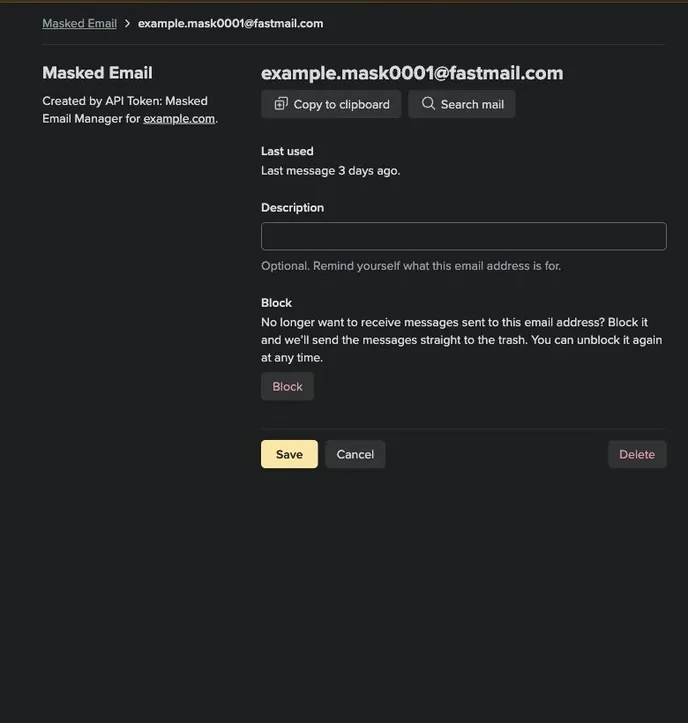
Turn off an address from Fastmail's settings or Masked Email Manager. Both change the same address in Fastmail.
In Fastmail
- Go to Settings, then Privacy & Security, then Masked Email.
- Find the address by the site or description you gave it.
- Set its state to Blocked. Delivery to your inbox stops immediately.
In Masked Email Manager
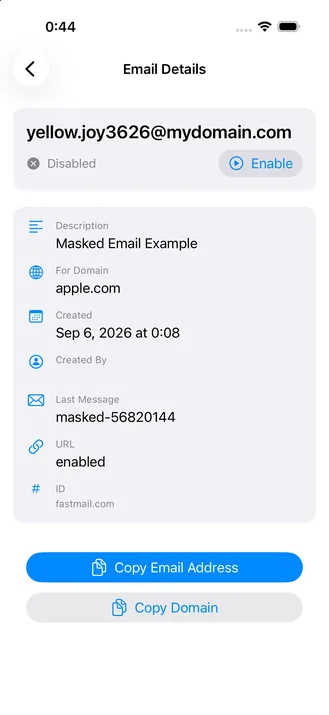
- Open the app and find the address in your list.
- Tap it to open the detail screen, then tap Disable.
- Or long-press the row and choose Disable from the menu, without leaving the list.
The row updates after Fastmail confirms the change. Use the same toggle to make the address Active again.
What blocking actually does
Mail sent to a blocked address goes to Trash instead of your inbox. Nothing bounces, so the sender cannot tell that you blocked it. If you switch the address back on, new mail arrives normally. Messages already in Trash stay there.
Blocking gives you time to decide whether you want mail from the address again.
Block, or delete?
Blocking is reversible. Switch the address back on and delivery returns to normal, although mail received while it was blocked stays in Trash. Deleting an address makes new mail bounce immediately, so the sender is told the address does not exist. You can only delete it from Fastmail's settings, not from this app.
Deletion is not final either. Fastmail keeps deleted addresses under Review deleted masked addresses on the same settings screen, and you can restore one at any time, though nothing recovers the mail that bounced in the meantime. An address that never received a message can also be removed for good from that screen, which is the only way to get one out of your list entirely.
Block when a service might still matter to you later. Delete when it never will.
Making a new address instead? The create guide covers both places you can generate one.
Masked Email Manager blocks and unblocks from the list itself, and it records what each address was for, so a year later you can still tell which signup is behind the spam.